Docs›Your setup
Custom, the app's own agent
Custom is Hydor's own agent: it runs any model you add, from OpenRouter, Ollama, vLLM or another OpenAI-compatible server, with the same tools, skills and connections as Claude Code and Codex. This topic covers what it can do, its permission modes and how it checks commands, Auto mode, the sandbox for commands, goals, how it copes with long work and weaker models, and its settings.
What Custom is, and when to use it#
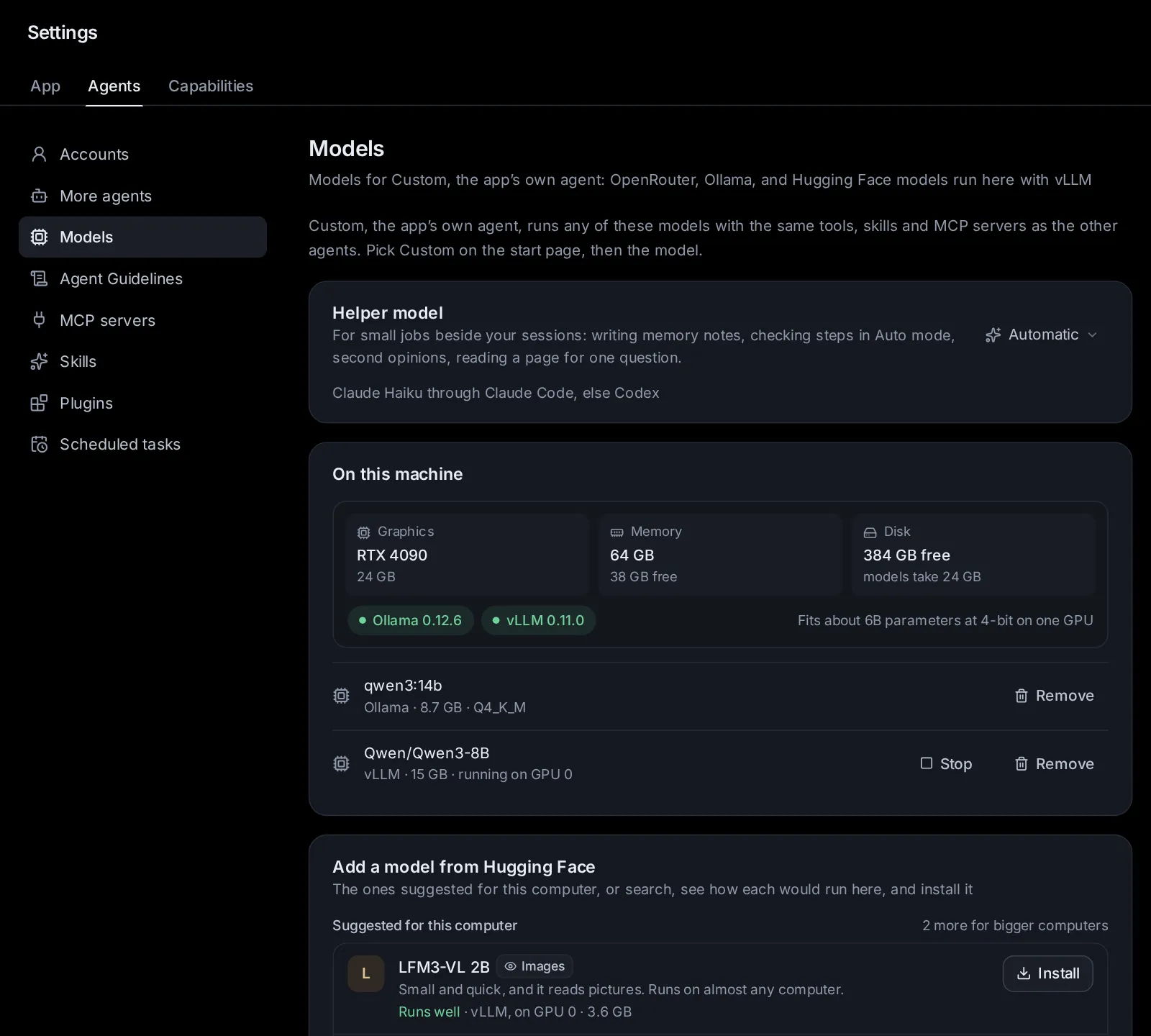
Claude Code only runs Anthropic's models, and Codex only OpenAI's. Custom runs any model you set up in Settings → Agents → Models: open models on your own computer, cheap or free models through OpenRouter, or a server of your own. See Agents, accounts and models for adding models.
Use Custom when you want:
- a model that never leaves your computer (Ollama or vLLM);
- a particular model, such as DeepSeek, Qwen, GLM or Kimi;
- to keep costs down, or to work when your Claude or ChatGPT plan is used up.
It helps with anything: research, writing, documents and everyday tasks. In a code project (a folder with a package.json, Cargo.toml, a git repository and the like) it works like a careful engineer: it reads before it changes, follows the project's own instructions, and runs the project's tests and checks before it says it's done.
Custom reads the project's AGENTS.md or CLAUDE.md files and follows your Agent Guidelines, like the other agents.
Start a Custom session#
- On the start page, click Agent and pick Custom ("Any model: OpenRouter, Ollama, vLLM").
- Click Model and pick one of your models. If the list is empty, add a model first: Agent → Models for Custom.
- Under Options, pick Permissions (see Choose what Custom may do without asking). Custom has no Effort setting.
- Type the task and press Enter.
A model on this computer served by vLLM starts the first time a session uses it; the session says "Starting … with vLLM (the first time takes a minute or two)…".
Custom takes one message at a time. A message you send while it works waits in the queue above the message box and goes out when the turn ends.
You can switch the model during a session from the menu under the message box. Custom uses the new model from its next step on, even in the middle of a turn.
What Custom can do#
- Files: read them (text with line numbers, a part of a long file at a time, a folder's contents), create, rewrite and edit them, list folders, and find files by name or by what they contain. Before it rewrites a whole file it hasn't read in this session, it is asked to read it first.
- Documents: PDF, Word, Excel, PowerPoint, OpenDocument, RTF and EPUB files are read as text.
- Images: pictures you attach, image files it opens, and images from web pages or tools. A model that sees images gets the picture; for one that doesn't, the helper model describes it (see Images for models that don't see).
- Commands: run shell commands in the session's folder, for up to two minutes by default and ten at most. Servers, watchers and other commands that keep running go in the background: Custom reads their output when it needs to, and can stop them. They also stop when Custom exits, and its next turn is told which ones still run.
- Web pages: fetch a page as clean text with its headings, links, lists and tables; PDFs and Office files online are read as text. It only reaches public addresses; for this computer or its network it uses a command such as
curl. - A plan: for work with several steps it keeps a checklist, shown in the session, and ticks items off.
- Skills: it loads the skills that fit the task: the project's, yours (Claude Code's and Codex's skill folders) and the app's skill library.
- MCP servers: tool servers you set up for Claude Code (for all folders and for this folder), the project's
.mcp.json, and Codex's. - The app's own tools: web search, the browser, memory, pages, your connections and the rest, as every agent here gets them.
Each step shows in the session with a plain name ("Read index.ts", "Edit README.md", "Fetch https://…"), with its diff or output a click away.
Choose what Custom may do without asking#
The Permissions setting (under Options on the start page, or in the menu under a session's message box) decides what Custom does on its own. Shift+Tab in the message box moves to the next mode.
- Ask (the default): asks before editing files and before running commands. Commands that only look around (
ls,cat,git statusand the like) run freely. - Accept edits: edits files in the session's folder freely; asks before running commands (except ones that only look around) and before anything outside the folder.
- Auto: routine steps go ahead; a quick check asks you about risky ones. See Auto mode.
- Full access: asks only before risky commands (running as administrator, deleting outside the folder, running a download…). Commands run in the sandbox when it's on.
- Plan: reads and plans only. Custom can't edit files or run commands, and only uses tools that read. It ends with a numbered plan. To carry it out, switch to another mode and tell it to go ahead.
In every mode, some commands always ask: see Commands that always ask.
Approve or deny what Custom wants to do#
When Custom needs your OK, a card appears in the session (and in the inbox). Its title says what the step does and why it asks, for example "Edit /home/you/notes/plan.md — it changes files outside the session folder". For a command, the card shows the whole command.
- Allow lets this one step run.
- Always allow … lets it run, and similar steps from now on in this session, without asking. The button says what it covers: "Always allow npm run build …", "Allow all edits", "Always allow reading in ~/data", "Always allow changes in ~/site".
- Reject stops this step. Custom is told you declined, and not to try it again.
How Always allow works for commands: Custom splits a command into its parts (at &&, ;, | and so on) and checks each one. A rule covers the command it was made for, by its first words (git status, npm run build, docker compose up), so nothing can ride along after &&. Commands that only look around never need a rule.
Always allow isn't offered when it can't be safe:
- for code given right in the command (such as
python -c "…"); - for a file whose name can't be known in advance;
- for a command that can't be read with confidence;
- for risky commands, which ask every time.
Commands that always ask#
Some steps ask you every time, in every mode, Full access and Auto included, whatever you allowed before:
- running as the administrator (
sudoand the like); - deleting files outside the session folder, deleting the session folder itself, or deleting files it can't name in advance;
- piping a download straight into a shell, or running a download straight away;
- writing raw data to a disk, formatting or repartitioning a disk;
- shutting down or restarting the computer;
- changing scheduled jobs (
crontab); - changing permissions or owners of a whole folder tree;
- changing SSH keys, or settings and startup files in your home folder (such as
.bashrcor~/.config), unless the session works in that folder.
Files outside the folder and files with keys#
In Ask, Accept edits and Plan, Custom asks before it reads or changes files outside the session's folder (the temporary folder doesn't count). Always allow then covers that folder, for reading or for changes.
Files that hold keys or passwords ask before they are read or changed, inside the folder too: .env files (not examples), SSH and other private keys, .netrc, .npmrc, credentials files, your cloud and password-store folders, the agents' own sign-ins, and the app's own data. Changes to git's own settings and hooks ask too. Always allow then covers just that file.
In Auto mode, Auto's rules and its quick check decide about these instead. In Full access they don't ask.
Auto mode#
Auto mode lets routine work go ahead without stopping you, and asks about the rest. Pick Auto under Permissions.
Each step that would ask goes through these checks in order:
- Fixed rules that need no model:
- Go ahead: edits inside the session's folder; new scratch files in the temporary folder; commands that only read inside the folder; the project's own tests, builds, linters and type checks.
- Ask you: overwriting a file outside the folder; anything on the always-ask list; force-pushing with git; writing, moving or deleting files outside the folder; commands that call a payment service; tools of a connected account or MCP server that send or post something, or spend money.
- A quick check for everything else, by the helper model. It answers one of three ways:
- allow: it plainly serves what you asked, stays in your folder (or only reads), and is easy to undo;
- ask: it could do lasting harm or reaches further (deleting data, installing software for the whole system, changing settings, using passwords or keys, sending or publishing anything, spending money, or something you didn't ask for);
- deny: it is clearly harmful or against what you want. The step doesn't run; Custom is told why and must find another way.
The quick check sees only your own messages in the session (the first one and the latest ten), the goal if you set one, the folder and the step itself (for an edit, the start of the new text). It never sees what Custom read, so a web page or a file can't talk it into anything. If the check fails or takes more than 45 seconds, you decide. Within one turn the same step gets the same answer.
In the session, a step Auto let through carries a small Auto label; hover over it for the reason. A step Auto stopped shows the label in red; hover over it for "Auto stopped this: …" and the reason. A card Auto sends to you starts with "Auto:" and the reason.
Settings → Capabilities → Custom describes Auto mode in the same words; there is nothing to switch there.
The sandbox for commands#
In Auto and Full access, Custom's commands can run in a sandbox: they can change files only in the session's folder and the temporary folder (/tmp), and everything else on the computer is read-only. They can still use the network. When the session works in a git worktree or a subfolder of a repository, the repository's own folder stays writable too, so git can commit. Package managers' caches move to the temporary folder.
When a command runs into the sandbox's walls, Custom is told it ran in a sandbox, and either works within it or tells you what needs doing elsewhere.
To turn it on or off, open Settings → Capabilities → Custom and use the switch by Sandbox for commands. It's on by default. Turn it off if a tool must write elsewhere, for example to install something for the whole system. The change applies to running sessions within about 15 seconds.
The sandbox uses bubblewrap, a Linux tool. If it isn't installed, or can't run (as in some containers), the switch is greyed out and the section says so; commands then run without a sandbox. In Ask and Accept edits, commands don't use the sandbox: there, every command that does more than look around waits for your OK, or for a rule you saved with Always allow.
Give Custom a goal#
A goal keeps Custom working, turn after turn, until a condition holds: "npm test passes and the upload page handles 2 GB files".
- Open the session's menu (⋯) → Set a goal.
- Describe what "done" looks like, as a condition that is true when the work is done.
- Click Start working on it (or press Ctrl+Enter, ⌘Enter on a Mac).
Custom starts on it at once; if a turn is running, the goal is checked when that turn ends.
After each turn, the helper model checks the goal against the evidence: what the steps did and showed (command output, test results, files, pages read). Custom saying it's done doesn't count by itself. Then:
- Done: the goal is cleared and you get a notice, "Goal met".
- Not yet: the check writes the next step and sends it as the next message ("Goal check 3: not there yet…").
- Needs you: the goal shows "stuck: the agent needs you" with the question, and you get a notice. Answer in the session.
- Waiting for something outside (a deploy, a download): it looks again in three minutes.
Your own messages go first: a check waits until the queue is empty.
The goal pauses, and tells you why, when:
- it has sent as many next steps as Goals in Settings allows (30 unless you change it);
- three rounds in a row made no progress;
- you stopped the agent, a turn failed, the agent wasn't running, or the check itself failed.
The goal bar above the message box shows the goal, how it stands ("working on it", "paused", "stuck: the agent needs you"), how many times it was checked and for how long, and the last check's reason. Pause sends no more next steps (a turn already running finishes), Resume carries on from the last next step (the count of rounds starts again), and Clear stops working towards it. While a goal runs, you get one notice when it's met rather than one after every turn.
To change how many rounds a goal may run, open Settings → Capabilities → Custom and pick 10, 30 or 100 next to Goals.
Long conversations and long output#
Every model can only read so much at once (its context). Custom keeps each conversation inside it by itself, so there is no Compact button for Custom sessions:
- When the conversation gets close to the limit (with room kept for the reply), Custom first clears old tool output. The session notes "Cleared old tool output to keep within the model's context."
- If that isn't enough, the model sums up the earlier part into notes the work continues from ("Summarizing the earlier conversation to keep within the model's context…"). The next time, it updates those notes rather than starting over. Your plan and the skills in use are kept either way.
If a model's server says the conversation is too long, Custom learns that model's real limit and condenses at once. Only the latest few pictures go with each request.
Long output doesn't fill the conversation either. When a command, a page or a tool gives back more than a share of the model's context, Custom keeps the whole of it in a file in the session's own folder. The model gets the start and the end (for a command, mostly the end, where errors show up) and the file's location, and reads the rest in pieces or searches it. These files are deleted after a week.
How Custom copes with weaker models#
Not every model is as practised with tools as Claude or GPT. Custom catches the common slips and puts the model back on track:
- Repeats: the same step with nothing changed since isn't run a third time (the model is told to use the earlier result); a fifth time stops the turn.
- Failing steps: after four failed steps in a row the model is told to stop and rethink; after eight the turn stops.
- Circles: steps that go round in a loop get a note to try something different.
- Unfinished work: a model that says "let me…" without doing it, or stops with items of its plan still open, is sent back to work, once each. After changing code without running the project's checks, it is asked to run them before it finishes.
- Length: a turn takes at most 200 steps; at 150 the model is told to finish the most important part. A reply cut off by the model's length limit is continued in shorter steps.
- Broken tool calls: calls written as text are read and run, calls with almost-right arguments are repaired, and a misspelt tool name is matched to the right one or answered with the list of tools.
- Models without tool calling: when a model's server takes no tools, Custom describes them in the instructions and reads the model's calls from what it writes.
- Hiccups: when the connection breaks mid-reply, or the server is busy, Custom waits and tries again a few times.
- Many tools: when there are many (from MCP servers and connections), the model sees a short list and looks up the full description of the ones it needs. A model with a short context (about 32,000 tokens or less, not through OpenRouter) gets fewer tools and is asked to take small steps.
- Each model family gets its maker's recommended settings, the edit format it was trained on, and a reasoning effort where it has one. Steps that only read run at the same time, to save waiting.
When Custom stops a turn for one of these reasons, the reply ends with "(Stopped: …)".
Images for models that don't see#
A model that sees images gets your pictures directly. Pictures are made smaller first when this computer has ffmpeg or ImageMagick.
For a model that doesn't see images, the helper model describes each picture in words: what it shows, where things are, and any text in it, copied exactly. This needs a helper model that sees images: open Settings → Agents → Models and pick one marked "sees images" under Helper model. "Automatic" can't. Without one, Custom tells the model there is a picture it can't see.
Forks and Edit from here#
Custom sessions can be forked like Claude Code and Codex sessions: the session's menu (⋯) → Fork. You can also change an earlier message of yours with Edit from here: the conversation continues in a copy from just before that message, and this one is archived. Tick Put the files back as they were before this message to undo the file changes since then. For Custom this covers the files its own edits changed; what commands changed stays as it is.
Custom keeps each conversation on disk, so it carries on after the app restarts.
What Custom costs#
- Models through OpenRouter: OpenRouter reports what each call cost, and the session's spending uses that.
- Models on this computer (Ollama, vLLM): nothing.
- Other endpoints: the tokens are priced like the other agents' (see Usage, limits and costs).
The session shows API cost and input, cached and output tokens above the message box, even without a spending cap. Charges come from OpenRouter’s response, or its generation record if the streamed charge is missing; its own catalog prices are the fallback. No manual prices are needed.
A spending cap works for Custom sessions too.
Settings → Capabilities → Custom#
Settings → Capabilities → Custom ("Auto mode, a sandbox for commands, and how long goals run") has three parts:
- Auto mode ("One of Custom's modes, beside Ask, Accept edits, Full access and Plan."): what Auto lets through, what always asks, and that the helper model does the check. Nothing to switch: you pick Auto per session under Permissions.
- Sandbox for commands ("In Auto and Full access modes, commands can change files only in the session's folder and /tmp. They can still use the network."): a switch, on by default. Greyed out when bubblewrap can't run here.
- Goals ("With /goal, Custom keeps working, turn after turn, until the goal holds. After this many rounds it pauses for you."): 10, 30 (the default) or 100 rounds. It also pauses after three rounds without progress.
Custom's models are in Settings → Agents → Models, and the model that does the checks is the Helper model there.
Ask an agent#
- "Turn off the sandbox for Custom's commands."
- "Let Custom's goals run for up to 100 rounds."
- "Set a goal on my Custom session 'Upload page': npm test passes and uploads of 2 GB work."
- "Which helper model does Auto mode use, and can it see images?"
- "Add Qwen3 Coder from OpenRouter so I can use it with Custom." (once your OpenRouter key is set)
- "Show my OpenRouter usage and costs without entering model prices."
Change this page on GitHub · the app's Help shows the same text